Outlook 2010 configuration
How to add your e-mail account to Outlook 2010:
- Click File, then Information in the submenu and the Add account button.

- Select Manually configure server settings or additional server types and click on Next.

- Select Internet E-mail and click on Next.

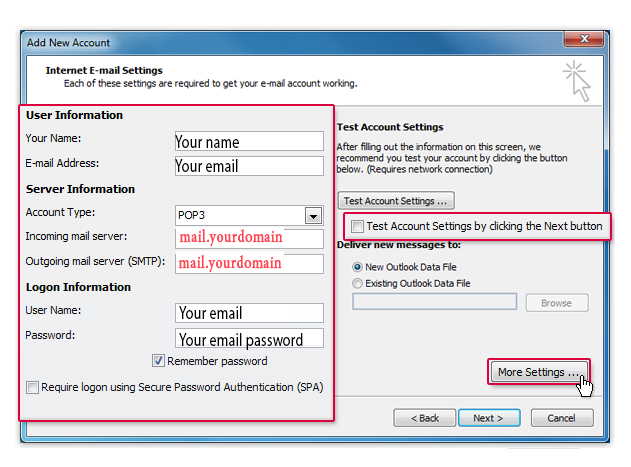
- Enter your name and e-mail address. Select POP3 for the account type and enter mail.yourdomain as incoming server and mail.yourdomain as outgoing server. Enter your mail.com username and password. Uncheck Test Account Settings by clicking the Next button. Click on More Settings.
- Select the Outgoing Server tab. Check My outgoing server requires authentication.

- Select the Advanced tab. Enter 110 next to Incoming server and uncheck This server requires an encrypted connection (SSL). Enter 587 next to Outgoing server and select none as encrypted connection type (a). If a copy of your e-mail should stay in your mail.com mailbox, check Leave a copy of messages on the the server (b). Click on OK (c) and on Next (d).
